
Basic Microsoft Excel Formulas for Beginners – 7 Useful Formulas.
Microsoft Excel is not just used for entering data and maintaining records. It also helps users perform calculations quickly without doing everything manually.
For example, if you maintain daily sales records, prepare office reports or calculate monthly expenses, Excel formulas can save time and reduce manual work.
In this guide, we will look at 7 basic Excel formulas with simple examples. These formulas are useful for beginners, accountants, data entry operators and anyone who works with spreadsheets.
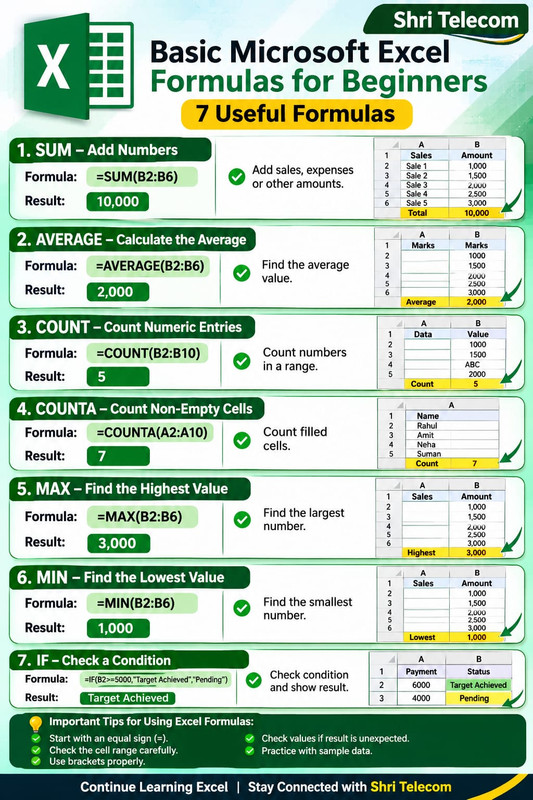
1. SUM – Add Numbers
The SUM formula is used to add numbers from different cells. It is commonly used for calculating total sales, expenses, payments and other amounts.
=SUM(B1:B10)
=SUM(B1:B10)
Example:- If cells B2 to B6 contain 100, 50, 250, 200, 50, 60, 90, 50, and 80, the formula will calculate their total.
Result: 930

2. AVERAGE – Calculate the Average
The AVERAGE formula calculates the average value of selected numbers.
It can be useful when calculating average sales, marks, expenses or monthly performance.
Example – Copy the Formula Below and Paste It into Excel.
=AVERAGE(B2:B6)
=AVERAGE(B2:B6)
Example:- If the values are 1000, 1500, 2000, 2500 and 3000, Excel will calculate the average.
Result: 2,000
3. COUNT – Count Numeric Entries
The COUNT formula counts how many cells in a selected range contain numbers.
It is useful when checking the number of numeric entries in a report or record sheet.
Example – Copy the Formula Below and Paste It into Excel.
=COUNT(B2:B10)
=COUNT(B2:B10)
Example:- If five cells in the selected range contain numbers and the remaining cells are blank or contain text, the result will be.
Result: 5
4. COUNTA – Count Non-Empty Cells
The COUNTA formula counts cells that are not empty. It can count numbers, text and other entered values.
For example, it can help you count the number of names entered in an employee list.
Example – Copy the Formula Below and Paste It into Excel.
=COUNTA(A2:A10)
=COUNTA(A2:A10)
Example:- If seven cells contain employee names, the result will be.
Result: 7
5. MAX – Find the Highest Value
The MAX formula finds the largest number in a selected range.
It can be useful for checking the highest sale, payment, expense or marks in a list.
Example – Copy the Formula Below and Paste It into Excel.
=MAX(B2:B6)
=MAX(B2:B6)
Example:- If the values are 1000, 1500, 2000, 2500 and 3000, Excel will display the highest value.
Result: 3,000
6. MIN – Find the Lowest Value
The MIN formula is used to find the smallest number in a selected range.
It is useful when comparing expenses, sales figures, payments or other numeric records.
Example – Copy the Formula Below and Paste It into Excel.
=MIN(B2:B6)
=MIN(B2:B6)
Example:- If the values are 1000, 1500, 2000, 2500 and 3000, Excel will display the lowest value.
Result: 1,000
7. IF – Check a Condition
The IF formula checks whether a condition is true or false and displays a result accordingly.
For example, you can use it to check whether a payment has been completed or is still pending.
Example – Copy the Formula Below and Paste It into Excel.
=IF(B2>=5000,"Target Achieved","Pending")
Example: If cell B2 contains 6000, Excel will display.
Result: Target Achieved
If the value in cell B2 is less than 5000, Excel will display Pending.
Example – Copy the Formula Below and Paste It into Excel.
=IF(B2>=5000,"Target Achieved","Pending")
Example: If cell B2 contains 6000, Excel will display.
Result: Target Achieved
If the value in cell B2 is less than 5000, Excel will display Pending.
Important Tips for Using Excel Formulas
- Every Excel formula starts with an equal sign (=).
- Always check the cell range before applying a formula.
- Use brackets carefully when writing formulas.
- If a formula gives an unexpected result, check the cell values and formula spelling.
- Practice these formulas with a small sample worksheet before using them in important records.
Conclusion.
These seven formulas are a good starting point for anyone learning Microsoft Excel. Once you understand how they work, everyday tasks such as calculating totals, finding averages and checking records become much easier.
You do not need to learn every Excel formula at once. Start with these basic functions and practise them using your own data.
In the next guide, we will look at some useful Excel formulas for accounting and daily office work.
Stay connected with Shri Telecom for more Excel tutorials, computer tips and software information.
-------------
Continue Learning Excel
- Part 1 – Microsoft Excel: Introduction, Uses & Basic Features for Beginners
- Part 2 – 25 Most Useful Microsoft Excel Shortcut Keys for Accountants and Office Work
- Part 3 – Basic Microsoft Excel Formulas for Beginners (Current Guide)
- Part 4 – Coming Soon
👨💼 ☕ 🧑💻
Enjoyed This Guide?
If this guide was helpful, you can support Shri Telecom with a coffee. Your support motivates us to keep sharing useful technical guides, tools and updates.
☕ Support Shri Telecom
Scan the QR code using your UPI app to send a voluntary contribution.

Thank you for your support. Every contribution is appreciated! ❤️