How to Fix Qualcomm IMEI Null or Network Issues via ADB Mode

Qualcomm Smartphone IMEI Repair & Network Fix Tool [ADB Mode]


How to Fix Qualcomm IMEI Null or Network Issues via ADB Mode

If your Qualcomm-powered smartphone is showing IMEI Null, Unknown Baseband, or No Network / No Signal issues, you are in the right place. This problem usually occurs after flashing a wrong custom ROM, an interrupted system update, or a corrupted EFS partition.

In this guide, we will walk you through how to use the HUIYE Qualcomm Write IMEI Repair Tool via ADB Mode to restore your original IMEI and fix network issues.

Important Requirements (Prerequisites) Before starting the process, make sure you have the following ready. A Windows PC or Laptop.

An Original USB Cable to connect your phone to the PC. Your phone’s Original IMEI Numbers (Can be found on the phone’s retail box or purchase bill).

Step-by-Step Guide: Qualcomm IMEI Repair via ADB Follow these steps carefully to fix your device's IMEI and restore cellular network.

Step 1: Enable USB Debugging (ADB Mode) Go to your smartphone's Settings > About Phone.Tap on the Build Number 7 times continuously until you see the message You are now a developer. Go back to the main Settings menu, open Developer Options, and turn ON USB Debugging.

Step 2: Install ADB Drivers & Connect Phone Extract and install the ADB Drivers Version 1.4.3 on your Windows PC. Connect your smartphone to the PC using the USB cable. Look at your phone screen; if an Allow USB Debugging? prompt appears, check Always allow and tap OK.

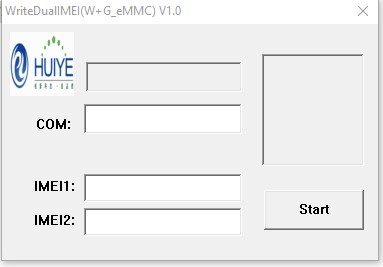
Step 3: Launch the Qualcomm Write IMEI Tool Extract the downloaded Qualcomm Write IMEI Repair Tool and run the executable file. The user interface will open (as shown in the screenshot above). Ensure that your device is correctly detected under the COM: section.

Step 4: Enter the Original IMEI Numbers Locate the IMEI input fields in the tool. IMEI1 - Input your device's first original IMEI number. IMEI2 - Input the second original IMEI number (if it is a Dual-SIM device). Double-check the numbers for accuracy, then click on the Start button.

Step 5: Process Completion & Reboot The tool will write the hardware identifiers to your device within a few seconds and display a Success or Pass status. Disconnect your phone from the PC and Restart (Reboot) the device. 

Verification

Once your phone boots up, open the dialer app and type *#06#. Your original IMEI numbers should now be visible on the screen, and network signals should return to normal.

⚠️ Disclaimer: This guide is intended strictly for restoring a device's Original IMEI (the one assigned by the manufacturer). Changing a device's IMEI to a different one is illegal in many countries. Use this tool responsibly and entirely at your own risk.

Download and install the required tools and drivers on your PC from the links below.

 Qualcomm Write IMEI Repair Tool

ADB Drivers Version 1.4.3

 Mobile USB Driver

📁 Join Us on Telegram (Shri Telecom) Click Here

👤 Join Us on Facebook Page (Shri Telecom) Click Here

🎥 Subscribe Now Us on YouTube (Shri Telecom) Click Here


Previous
Next Post »